Start here
Connecting via intervals.icu
Step by step: create an intervals.icu account, connect a Garmin watch to it and pass your workouts on to TriCoo.
3 min read
intervals.icu is a free training service. It can collect workouts from almost any watch, bike computer, band or indoor trainer, including Garmin, COROS, Polar, Suunto, Wahoo, Amazfit, Huawei and Zwift. That's why we suggest making it the single home for all your workouts. You connect your devices to it once, and TriCoo picks everything up from one place.
When all your workouts live in one place, they are easy to browse, compare and move.
Below is the whole route, using a Garmin watch as the example. Other watches work the same way; only the block in the list changes.
Step 1. Create an account
- Open intervals.icu and press Sign Up Free. The form can be switched to your language with the flags above it.
- Enter your email, a password and a name. The name works as a username, so it has to be free.
- If you don't know your FTP, leave the number that's there. Enter your maximum heart rate roughly. You can change both later, and TriCoo works out your thresholds itself anyway.
- Fill in weight, sex and time zone, then press Sign Up.
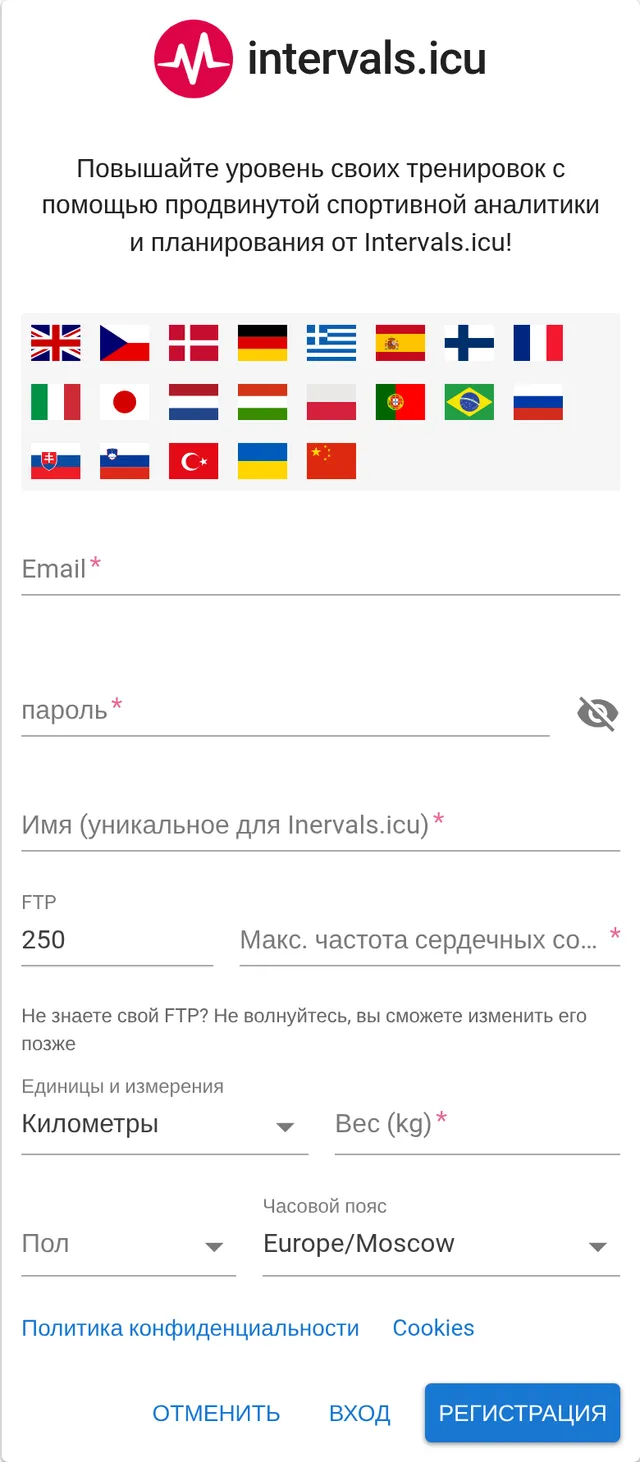
Step 2. Connect your watch to intervals.icu
- In intervals.icu, open the menu, Settings and the Connections tab. Or go straight there with this direct link.
- Find the Garmin Connect block and tick Download activities. The service sends you to the Garmin sign-in page.
- Sign in with the same account you use in the Garmin Connect app and allow access.
- Tick two more boxes. Upload planned workouts lets the TriCoo plan reach your watch. Download wellness data brings resting heart rate, sleep and other watch metrics into intervals.icu.
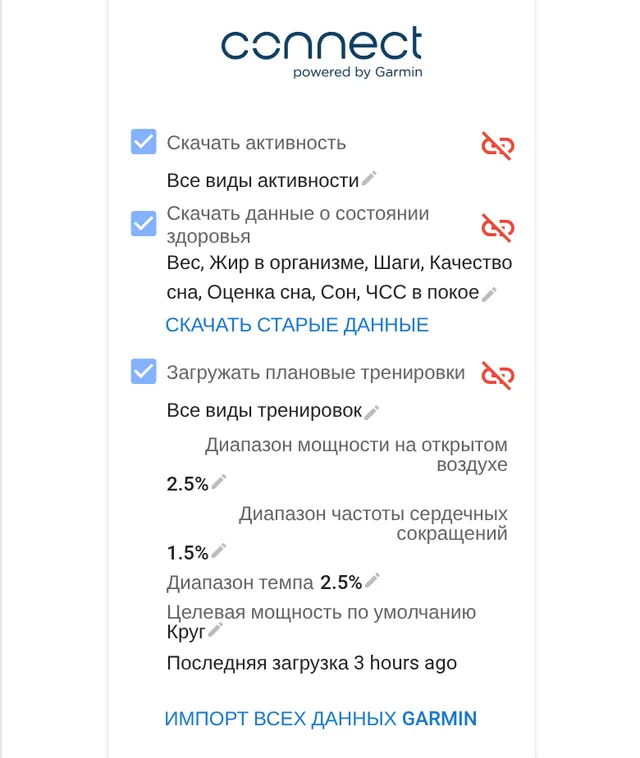
New workouts arrive on their own once your watch syncs with Garmin Connect. Garmin doesn't always hand over older ones in full. If some are missing, export them from Garmin Connect as files and upload them to TriCoo.
If both your watch and Strava are connected, it's best to switch off downloading workouts from Strava inside intervals.icu. Workouts that reached it from Strava come to us without any data; Strava's rules require that.
Step 3. Connect intervals.icu to TriCoo
- In TriCoo, open Settings and the Connections section.
- Next to intervals.icu, press Connect.
- intervals.icu opens. Allow TriCoo access and you'll come back.
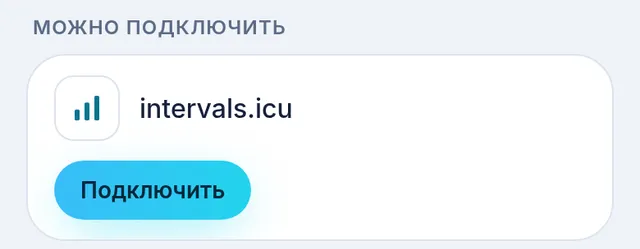
If you don't have a TriCoo account yet, you can press Sign up with intervals.icu right on the sign-up page.
Step 4. What to switch on afterwards
Import history. The button on the intervals.icu card brings in past workouts, so the platform can see straight away how you trained before.
Recovery metrics. On the same card you can tick resting heart rate and heart rate variability. If your watch records them, they help work out the day's readiness.
Send my plan to intervals.icu. With this switch on, the workouts from your TriCoo plan appear in the intervals.icu calendar, and from there, thanks to the tick in step 2, on your watch. In the morning you open the workout on your watch and it guides you through every segment. If it says Not available yet next to it, this option isn't open for you yet.
If a workout didn't arrive
Follow the chain. First check the workout is in Garmin Connect, then in the intervals.icu calendar. If it's everywhere except TriCoo, press Sync now on the intervals.icu card in Connections.
Terms in this article
What to read next
- Data and connectionsWhere your workouts come from, what the platform computes itself, and what happens when data doesn't arrive.
- Thresholds and zonesWhere your thresholds come from, why each carries a confidence level, and when a test is worth doing.
- Readiness: your traffic lightHow the platform decides whether to push today or hold back — and why it sometimes stays honestly silent.